


Remember the sound of a blaster rifle echoing across the ice plains of Hoth in Star Wars: Battlefront II? For many, those online PlayStation 2 battles feel like a distant memory, a chapter of gaming history that closed long ago. You might assume it’s impossible to go back, and for a while, you would have been right. Get the Best information about daftar indoxslot.
The core problem is simple: Sony officially shut down the last of its PlayStation 2 online servers in 2016, permanently locking the doors on an entire era of multiplayer gaming. Once those official hubs went dark, there was no way to connect and play classics like SOCOM II or Ratchet & Clank: Up Your Arsenal the way they were meant to be played.
But think of it like your favorite restaurant closing down, only for the original chefs to open a new, secret spot with the same menu. That’s what a dedicated community has done for the PS2. Fans have built their own online lobbies, known as “private servers,” to replace the ones that were shut down. The games work just like they always did; they just need to be given the new address.
Getting your computer set up to play PlayStation 2 online multiplayer with friends might sound complicated, but it’s now a straightforward process. It is absolutely possible to relive those glory days, and this guide provides the complete roadmap for setting up the necessary software and finding a match.
Your PS2 Online Revival Kit: What You Need Before You Start
To play PS2 games on your PC, you first need to gather a few key ingredients. Think of this as your personal online revival kit. Make sure you have these five things ready to go:
- A Decent Modern PC: If your computer can run modern games, even on low settings, you’re good to go.
- A USB Game Controller: Any modern controller, like one for an Xbox or PlayStation, will work perfectly.
- A Game ISO File: This is a digital copy of your game disc. Think of it like an MP3 file, but for a whole game instead of a song.
- A PS2 BIOS File: This is the essential startup software from a real PlayStation 2.
- The PCSX2 Emulator: This is the free program that will act as our virtual PS2.
The two new terms there—BIOS and ISO—are the most important parts for making this all work. The PCSX2 emulator needs the BIOS file to know how to act like a real PlayStation 2; it’s the console’s “brain.” And of course, the ISO file is the game you want to play. You will need to have your own BIOS and ISO files to proceed.
With everything on the checklist, it’s time for the first step: building your virtual PS2.
Step 1: Building Your Virtual PS2 with PCSX2
With all your revival kit items gathered, it’s time for the fun part: assembling your virtual PlayStation 2. The program that makes this possible is PCSX2, which is widely seen as the best PS2 emulator available, especially for getting online. This initial setup is a one-time process that lays the groundwork for all our future gaming sessions.
First, find the PCSX2 installer you downloaded and run it. The program will greet you with a standard setup wizard, just like any other piece of software. You can safely click “Next” through the initial screens, leaving the default settings as they are. This part of the PCSX2 configuration guide is designed to be as simple as possible.
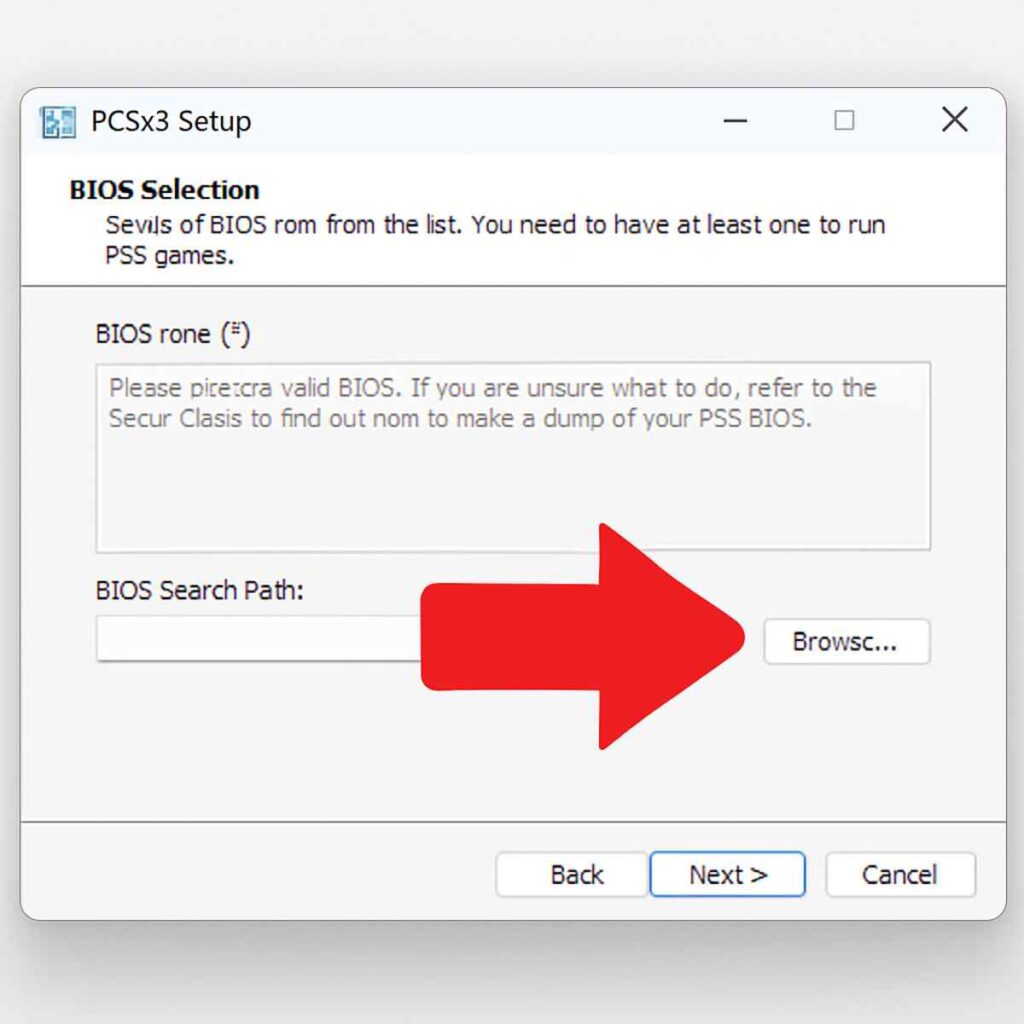
You will soon reach a critical step: the BIOS screen. This is where we give our virtual PS2 its “brain.” The emulator can’t function without the official startup software from a real console. The program will show an empty list and ask you to point it to your BIOS file.
Simply click the “Browse” button, navigate to where you saved your PS2 BIOS file, and select it. Once you see your BIOS appear in the list, you’ve passed the hardest part! Now, open PCSX2 and use the main menu to launch your game’s ISO file. If you see the classic PlayStation 2 startup animation followed by your game’s title screen, congratulations—you have a fully working offline PS2 on your PC.
Playing the classics solo is great, but we’re here for the thrill of online multiplayer. Now that your virtual console is working, the final step is to tell it where to find the new, fan-run game servers.
Step 2: Connecting to the New Online Universe
Now that your virtual PS2 is running, it faces a small problem: it’s trying to connect to online servers that Sony shut down over a decade ago. Think of it like your game having an old address book; it keeps trying to find its friends at a location that no longer exists. To fix this, we need to give it a new, updated address.
This is where a little bit of magic called DNS Patching comes in. It sounds technical, but it’s just the digital version of scribbling out an old address and writing in a new one. A dedicated community of fans has built new, private servers for these classic games to live on. Our job is to tell PCSX2 where to find them, which we can do by changing a single setting.
To get started, open PCSX2 and look at the menu bar at the top of the window. Click on Config, and then select Network & HDD Settings from the dropdown menu. This will open a new window where we can perform our digital surgery. It’s a simple procedure, and you only have to do it once.
In the Network Settings window, make sure you are on the Ethernet tab. You’ll see several options, but the only one we care about is labeled DNS1 Address. This is the address book entry we need to change. Click inside the box and replace whatever is there (it’s probably all zeroes) with the following number:
45.7.228.197
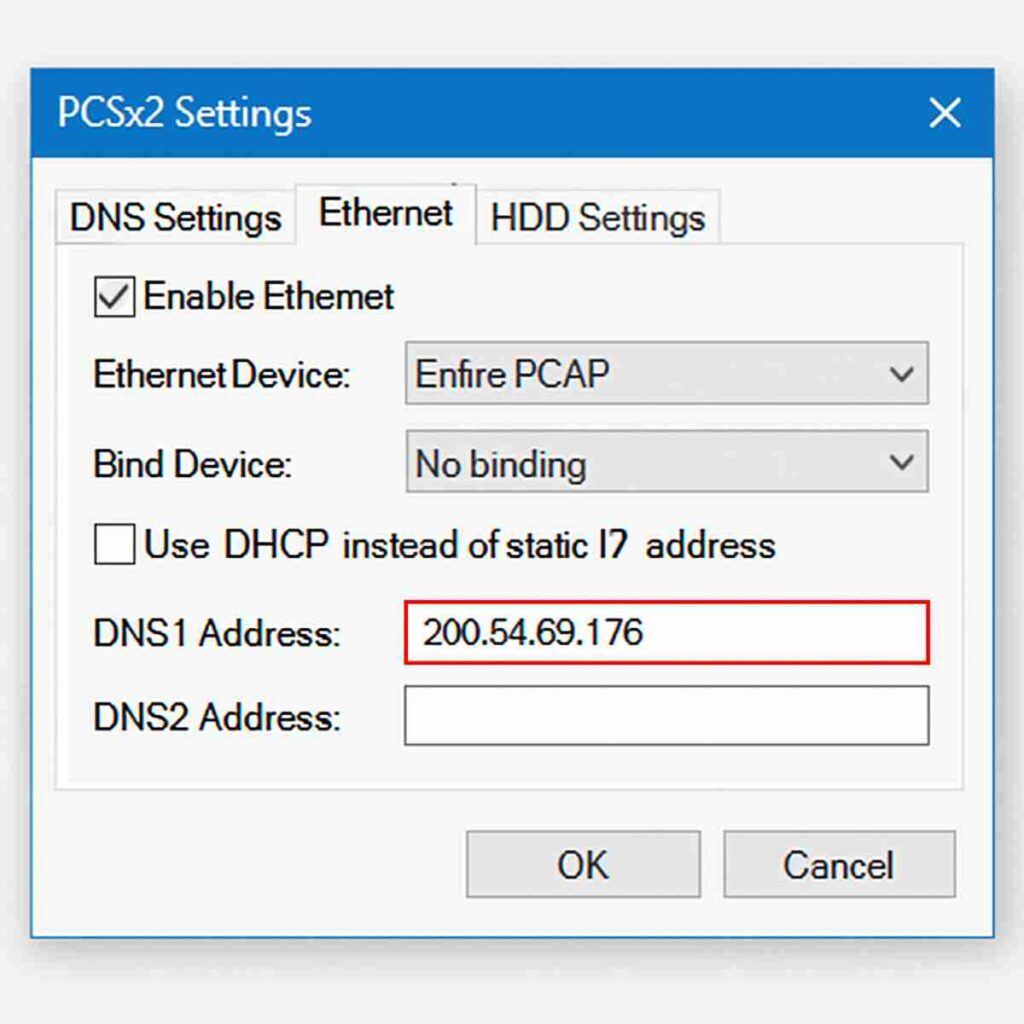
After typing or pasting that number in, click “Apply” and then “OK” to close the window. And that’s it—your virtual PS2 now knows where to find the action. Your console is now configured and ready to connect. Next, we’ll see it all come together as we fire up a game and join a lobby.
Step 3: Launching Your First Online Match in Star Wars: Battlefront II
With the technical part behind us, it’s time for the moment of truth. All that setup—installing the emulator, configuring the network—was to achieve one simple, magical outcome: seeing a list of live games waiting for you. We’ll use the legendary Star Wars: Battlefront II as our example, but the process is similar for most other online-enabled titles. Fire up the emulator and launch your digital copy of the game.
Once you’re at the game’s main menu, navigate to the multiplayer section. In Battlefront II, you’ll select Multiplayer and then choose Online. Some other games might label this option “Internet” or “Network Play.” The game will then attempt to connect to a server. For a brief moment, it will feel just like it did on your original PlayStation 2, but instead of failing to connect, the new DNS address you entered will guide it to the community-run servers.
If everything was configured correctly, you will be greeted by a sight many thought was lost to time: the in-game server browser, populated with active games. You’ll see server names, the current map being played, and, most importantly, the number of players in the match. This list is your confirmation that the setup was a success.
Congratulations! You’ve officially reconnected a piece of gaming history to the modern world. You can now select any server with an open slot and jump right into the action. Seeing that server list is an incredible feeling, but Battlefront II is just the beginning of your retro online adventure. So, what other classics are waiting for you?
What PS2 Games Still Have Active Online Communities?
Now that you’ve seen a live server list in Star Wars: Battlefront II, you’re probably wondering what other classics have been brought back from the brink. While not every title from the golden age of PS2 multiplayer is currently playable, a dedicated community has resurrected many of the biggest and best. The good news is that the most popular games—the ones we all remember—were the first ones to be revived, so there are plenty of iconic experiences waiting for you.
Your online adventure is just getting started. This list includes some of the most active communities, meaning you can find a match almost any time:
- SOCOM II: U.S. Navy SEALs: The legendary tactical shooter is back in full force.
- Ratchet & Clank: Up Your Arsenal: Fast-paced, chaotic deathmatches have returned.
- Tony Hawk’s Underground: Compete for the high score in classic trick-attack modes.
- Twisted Metal: Black Online: The original car combat mayhem is alive and well.
- Killzone: Join the fight between the ISA and Helghast in this gritty FPS.
- Outbreak File #1 & #2: Survive the Raccoon City incident with other players.
This is just a starting point. Many other titles are playable, and some, like the Outbreak series, use a slightly different connection method. The community is constantly working to restore more games for modern play. Now that you know which battlefield to head to, it’s time to find your squad.
Finding Your Squad: Where to Meet Other PS2 Online Players
Jumping into an old game and seeing an empty server list can be a little disheartening, but don’t worry—the party is just happening somewhere else. Unlike modern matchmaking where you can find a game with a single click, this retro scene works differently. The entire community coordinates and organizes games before they even launch them. The central hub for all this activity is a free chat application called Discord, which acts as a modern-day game lobby for the entire online community.
Finding these groups is surprisingly simple. Your best bet is to search online for “[Game Name] PS2 Online Discord” to find an invitation link. For example, a quick search for the SOCOM or Battlefront communities will lead you right to their virtual headquarters. Once you join, you’ll find different text channels dedicated to specific games, general chat, and technical help. This is the most reliable way to find servers with active players at any given time.
Once you’re in, finding a match is as easy as sending a message. Simply head to the right channel and post something like, “Anyone up for a match of Twisted Metal: Black?” This is the perfect method to organize a session of PlayStation 2 online multiplayer with friends, old and new. While the community is incredibly helpful, technical hiccups can sometimes get in the way of a perfect game night. If you run into trouble, our next section is here to help.
Fixing Common Problems: What to Do If It Doesn’t Work
Even with a perfect setup, you might hit a small bump in the road. Don’t get discouraged! Most issues are caused by one of a few common settings, and they are usually simple to fix. Think of this as the final checklist before you can jump into the action.
Here are the three most common problems and their quick fixes:
- My game is running very slowly. If your game is choppy, the easiest fix is to adjust the Graphics Presets. Go into the main graphics settings and look for a preset slider. Try selecting a balanced option like “2 – Safe” to instantly boost performance without sacrificing too much visual quality.
- I can’t see any online servers. Double-check two things. First, ensure you copied the DNS number exactly right in the network configuration. Second, confirm that your network device is actually enabled in the emulator’s network settings tab.
- My controller isn’t working. The emulator just needs a proper introduction. Head to the controller settings and use the Automatic Mapping feature. For most modern gamepads, like an Xbox controller, selecting the “XInput” source will configure everything for you instantly.
That automatic Controller Mapping step is a lifesaver. It tells PCSX2 how to translate the buttons from your modern gamepad to the original PS2 DualShock layout, saving you from a tedious manual setup.
With those potential hiccups sorted out, you’ve officially conquered the hardest parts of the process. You’ve installed the software, configured your game, and now know how to troubleshoot the most common problems. You’re ready to relive the glory days.
You’re Ready to Relive the Glory Days
Just a short while ago, jumping into a match of Star Wars: Battlefront II on the PS2 likely felt like a distant memory. You’ve now journeyed past the barrier of shut-down servers, armed with the knowledge of how a dedicated community and a few key settings can turn your PC into a time machine. The “how” is no longer a mystery; you hold the complete map to get back into the game.
That feeling of seeing a full server list in SOCOM or hearing the chaos of a Ratchet & Clank firefight is no longer locked in the past. This PS2 multiplayer revival isn’t just a technical trick; it’s a living community waiting for new and returning players. The process you learned is your key to playing PS2 games online today with fans from around the world.
You have the tools. You know the way. The only thing left to do is dive in. Fire up that emulator, find a match, and relive those glory days with a new generation of rivals. It’s time to stop reminiscing and start playing. We’ll see you online.